

Searching for trade marks
IPONZ maintains two tools for searching the New Zealand trade marks register.
Trade Mark Check allows you to easily check for marks like yours on the register. With the smart searching and image recognition features you can upload a logo or image to search against trade marks on the register.
Trade Mark Case Search allows for targeted searching of intellectual property cases by case number, owner, date, and more.
Using Trade Mark Check
Trade Mark Check includes tooltips and help information that can guide you through the searching process. There are two search options:
Word or slogan check
This option lets you enter a word or slogan that is between 3 and 50 characters in length. Trade Mark Check will then search for any trade marks on the register that resemble the word or slogan you have entered.
Logo or image check
This option lets you upload an image from your computer or mobile device. The artificial intelligence built into Trade Mark Check will then suggest image features to help search against logo or image trade marks on the register.
With Trade Mark Check you can also limit your search to specific goods and services classes.
The video opens on a title card showing the Intellectual Property Office of New Zealand logo. This fades to another screen showing the words “How to search for a trade mark using Trade Mark Check”.
We see a man standing in an office space, wearing a hat and jacket. He talks directly to the camera “So, you've got an idea for a trade mark, but you're worried someone else might have thought of it already. Don't worry, it actually is really easy to check.”
The video cuts to footage of a woman sitting at a desk using a laptop, indicating she is checking information online, we hear the same man from before continue speaking in the background “Let's start with the trade marks register.”
The video moves to what is happening on the laptop screen, we see she us searching at the IPONZ website for their trade mark idea “energy drink milk”, and they scroll through the results. The man continues speaking “Basically, it's a public register where you can search for existing trade marks. Using Trade Mark Check, you can see if something similar to your idea is already protected in New Zealand.”
The video cuts back to showing the man speaking. “If it is, you may have to go back to the drawing board or obtain some professional advice on your next steps.”
The video cuts to footage of a group of people standing around a table in an office, in an informal meeting. The man continues speaking “You may still be able to protect your mark if your business isn't in the same industry as the existing mark's business.”
The video cuts to a beekeeper in protective suit tending to beehives, and then to an overhead shot of a fruit packing warehouse showing people working at conveyer belts and many boxes of produce – these images emphasise particular products that come from the production shown. The man continues speaking “Note that Trade Mark Check doesn't look at existing trade marks in other countries, so keep this in mind if you're considering exporting goods or services overseas.”
The video cuts to two women seated at a laptop, discussing options for their business, then back to the man speaking “Trade Mark Check was designed to guide you through a searching process, and the best news is it's freely available, and you don't even need an account to use it. So, how do you find it?
We see another woman sitting at a table using a laptop, then cuts to showing what’s on the laptop screen as they navigate the IPONZ website to Trade Mark Check “Just head to the IPONZ website. You’ll find big trade mark section on the homepage so you don’t have to go searching. Once you’ve made it to the Trade Mark Check, you’ll be given two search options:”
We see the start screen of Trade Mark Check showing the search options, and the titles of the two search options are emphasised on screen as the main continues speaking “word or slogan check, and logo or image check.”
We see the person using the computer search Trade Mark Check for the word or slogan “milk energy drink” and then scroll through their search results. The man continues speaking “The word or slogan check lets you enter words or a slogan between 3 and 50 characters, and run a search for you to see what else is out there that's similar to what you've typed.
We return to video of the man speaking, then cut back to the start screen of Trade Mark Check with the “Logo or image check” option emphasised “If it's a visual you are checking, the logo or image check is where you want to be.”
We see the user uploading a logo with the words “milkEnergy” and a stylised coloured milk bottle with wings. The man continues speaking “This is the one that lets you upload your image and then runs the search. The tool suggests features of your image to help you narrow down your search a bit further too.” We see that Trade Mark Check has detected the uploaded logo features wings and a bottle.
We see the man speaking to camera again, then back to the Trade Mark Check logo upload screen. They are skipping the image upload and moving to the next screen that allows you to specify features you want to include in your logo to see if there are similar logos that are already registered trade marks “Let's say you don't have your image ready to go. Just skip this step and pick a few key features.”
“You'll also be able to choose goods and services classes to get even more specific with your search, just click Select Good or service class, and you'll get a list of industry categories.” We see the user is viewing the list of goods and services classes to help narrow their search results. The user chooses “Class 29 – Meat, eggs, dairy and preserved fruit and vegetables”, and “Class 32 – Water, non-alcoholic drinks and beer (excludes milk)” then scroll through their updated results.
The man continues speaking “Generally speaking, the more results you find, the more popular your idea is, and the harder it will be to trade mark.”
We see the man speaking to camera again “The thing is you won't know for sure whether your trade mark will be accepted or not until a trade mark examiner has taken a look at it.”
We see a woman standing and a man sitting, both looking at images of their products on a computer, implying they are considering their products. The speaker continues “Maybe you want to reach out to a designer to take your idea to the next level.”
We see a the Trade Mark Check search results again as the user chooses to save a pdf of their top results. The man continues speaking “You can download a PDF of your search results to take with you to keep your trade mark unique.
We see the man speaking directly to camera again “If you don't have time, or you just want a hand with the process, the Intellectual Property Office of New Zealand can do a check for you for a small fee.”
We see the IPONZ website on a computer screen, showing a page titled “Search and preliminary advice” as we hear the man continue speaking "Take a look at the Search and preliminary advice info on the IPONZ website for more details, and, happy trade mark searching!”
The image cuts to an end title screen showing the Intellectual Property Office of New Zealand and Digital Boost logos. The text on screen lists the IPONZ contact phone numbers, “Freephone within New Zealand 0508 447 669, Freephone from Australia 1800 796 338, International callers +64 3 962 2607”. The man continues speaking “Still have questions? The Intellectual Property Office of New Zealand is open between 8:30 AM and 5:00 PM Monday to Friday.”
The text changes to show the website address of the contact us page on the IPONZ website with the words “For less urgent matters iponz.govt.nz/contact-us We’ll be in touch within 7 working days” and the man continues speaking “For less urgent matters, you can head to the Contact Us page on the IPONZ website. We should be in touch within seven working days. The Contact Us page also has a Common Query section, so be sure to check this out in case it addresses your question or concern.”
The video finishes by showing the logo of the Ministry of Business, Innovation and Employment, and the logo of the New Zealand Government.
Using the Trade Mark Case Search
The Trade Mark Case Search is used to:
- Perform general searches for trade marks that are on the register (including abandoned, cancelled, or expired trade marks), based on targeted search queries.
- Logged in users can also search for specific cases for which they wish to maintain.
Search results
If the search finds:
- only one case, the screen for that case relevant to the context of the search will be displayed,
- more than one case, a list of search results will be displayed beneath the search query. Select the underlined case number to display the details of a case.
Searching with Trade Mark Case Search
Searching by case number
If you know the case number of the case you're looking for, enter this in the Trade Mark number field. You can search national trade marks and international registration numbers (IRNs) in a single search.
Separate multiple case numbers using commas- 123456,123457,123458
Searching by case title
If you know the title of the case you're looking for, or if you’re looking for cases with similar titles, use the Title field.
The Title field takes a range of search operators and wildcards (see below) and is not case-sensitive.
The search engine treats all punctuation characters as a single space unless the “ “ quotation mark operators are used. It also automatically converts characters with accents (for example, É) to their equivalent character without an accent.
Search operators
| Search Operator | Function | Example |
|---|---|---|
| AND | Using AND between search terms will return only cases that contain both terms. The search engine evaluates AND before OR. |
GOOD AND SHOT will return GOOD SHOT but not GOOD SLEEP |
| OR (or spaces) | Using OR between terms will return cases that contain either term. The search engine treats spaces as OR operators. |
HAT OR CITY will return HAT WORLD and CITY BUS |
| NOT | Using NOT will exclude any cases that contain the specified term. The search engine evaluates NOT before AND. |
PLANET NOT EGG will return BIG PLANET but not EGG PLANET |
| () parentheses | Parentheses allow you to structure complex searches. The search engine evaluates parentheses before all other operators. |
(GOOD AND SHOT) AND (HAT OR CITY) will return GOOD SHOT CITY and GOOD SHOT HAT |
| " " quotation marks | Quotation marks allow you to specify exact matches. You may use wildcards within “ “ quotation marks. The search engine treats all punctuation characters as a single-space unless you use the “ “ quotation mark operators. |
“EGG PLANET” will return EGG PLANET and BIG EGG PLANET but not PLANET EGG “HAT?CITY” will return HAT CITY but not CITY HAT or HATCITY |
Wildcards
| Wildcard | Function | Example |
|---|---|---|
| ? | Represents a single character only. | SUP?R will return SUPER, SUPOR and SUP1R but not SUPR |
| * | Represents any number of characters (including none). | *MARKET* will return MARKET, SUPERMARKET and MARKET FISH *M*RK*T* will return MARKET, SUPERMARKET, MARKET FISH, MEERKAT, and MOTHERKIT M*RK*T will return MARKET, MARKET FISH, MEERKAT, and MOTHERKIT, but not SUPERMARKET |
Example title searches
| Example case | Example searches |
|---|---|
| PLASTERCOTE |
|
| LEARNING MEDIA |
|
| MILLENIUM |
|
| JUICY ORANGE |
|
| ECO KIWI |
|
| A |
|
| BAY CAFE |
|
Searching for images using the Vienna Classification system
If you are searching for an image you can use the Vienna Classification field.
The Vienna Classification system is a numbering system developed by the World Intellectual Property Organization (WIPO) to describe images or stylised features that make up trade marks.
Every trade mark on the New Zealand register that contains a stylised element has been assigned a relevant “Vienna Descriptor”.
The classification constitutes a hierarchical system that proceeds from the general to the particular. For example:
- 8 Foodstuffs
- 8.1 Bakers’ Products, Pastry, Confectionery, Chocolate
- 8.1.19 Chocolate, confectionary (including chewing gum)
- 8.1.22 Squares of chocolate, pralines, fondants or other unwrapped sweets
A summary of the WIPO Vienna categories is provided below. A full list of terms classified according to the WIPO Vienna Classification system can be found on the World Intellectual Property Organization (WIPO) website.
We've supplemented the Vienna Descriptors by adding descriptors that are specific to New Zealand, for example native flora and fauna. New Zealand’s Vienna descriptors may be used in conjunction with other descriptors that are not specific to New Zealand. For instance, if you wanted to search for a silver fern design, you may search under New Zealand descriptor 53.2.2, but also under 5.3.7 (ferns), 5.3.13 (stylised leaves) and 5.3.14 (stylised leaf).
Searching using Vienna descriptors
Searches using Vienna descriptors can be conducted using the AND, OR and AND NOT operators. Unlike title searches to exclude results you must use AND NOT. You can also search using Vienna descriptors by the subcategory.
| Example image | Example Vienna descriptors |
|---|---|
 |
|
To search for the image above you could use the following strategies:
| Strategy | Search |
|---|---|
| Search for each descriptor individually | 3.7.11 3.7.21 3.7.24 24.17.1 53.1.20 |
| Search for combinations of individual descriptors | (3.7.11 AND 3.7.24) OR (3.7.24 AND 24.17.1) |
| Search for all descriptors in a sub-category | 53.1 |
| Search for combinations of sub-categories | 3.7 AND 53.1 |
| Search for some descriptors but exclude others | 3.7.21 AND 3.7.24 AND NOT 3.7.1 |
Searching using the Nice goods and/or services classification
If you are searching by goods and/or services, use the Goods and Services Class(es) field in the Classification/Status section.
About the Nice classification
New Zealand uses the international classification system known as the Nice Classification system to separate goods and services into different classes. A full list of terms classified according to the Nice Classification system can be found online on the WIPO website.
Nice classes
You can find a full list of terms classified according to the Nice Classification system on the WIPO website. Our Trade Mark Specification Builder tool also uses classes and terms under the Nice Classification system.
It's also important to remember that although a similar or identical mark to yours may be filed under a different class, the goods or services may still be similar. You should therefore consider extending your search to similar classes as well.
A reference to Nice classes that are considered similar to each other can be found in our Conflicting Class Table, under Section 6.2 of our practice guideline on identical or similar trade marks.
Relative grounds - Identical or similar trade marks
Nice classification schedules
Every trade mark is assigned a classification schedule depending on when the application was made. The following schedules have been used in New Zealand:
| Schedule | Period |
|---|---|
| 4 | Cases filed between 11 December 1941 and 6 January 2002 |
| 8 | Cases filed on or after 7 January 2002 |
| 9 | Cases filed on or after 1 January 2007 |
| 10 | Cases filed on or after 1 January 2012 |
| 11 | Cases filed on or after 1 January 2017 |
| 12 | Cases filed on or after 1 January 2023 |
Any trade mark applied for prior to 11 December 1941 will have been converted to one of the versions of the Nice classification.
Searching using the Nice classification
If you wish to search for trade mark cases including classes containing goods or services that have been re-classified over time, you may wish to limit your search by Goods and Services Class(es) and Nice Classification Schedule. For example, to find trade mark cases including class 42 under Nice Schedule 8, which may contain legal services and related services.
If you do not enter a schedule this field defaults to searching across all schedules.
Searching by owner/agent details
If you want to search for cases including a particular person or agent, you can use the Applicant/Owner Name, Case Contact Name, Agent/Local Representative Name, or International Representative Name fields in the Client Search section. You can use search operators and wildcards in these fields as you would for the Title field.
Alternatively, you can search for cases including particular client IDs by using the Select option to the right of the Applicant/Owner ID, Case Contact ID, Agent/Local Representative ID, or International Representative ID fields.
You can also search by Client Reference.
Searching by other criteria
You can search by important case dates and convention priority details in the Date Search section. For example, you may wish to search by Submission Date (to find new International Registrations), or by Convention Priority Date range, to find applications received after another application’s Filing Date but having priority.
You can also search by Case Status, application details like Mark Type, Mark Nature and Series, and by whether or not a case is a Māori Trade Mark or subject to a proceeding.
You can limit your search to Live Status cases to find only marks that may be cited as having priority against a new application.
Note that cases with the statuses Abandoned – continued processing available and Refused – continued processing available are included in the Live Statuses search. While these marks are not on the live register, they are of interest as they may be cited as having priority over later filed marks if a request for Continued Processing is accepted.
Searching for marks containing foreign characters
Marks containing foreign characters, for example Chinese or Japanese characters, may have a combination of Title and/or Vienna Descriptor coding. Therefore, you may need to perform two searches to find relevant foreign character marks on the register - one including foreign characters in the Title field, and one including the appropriate Vienna Classification Code.
|
For example: A mark may have the Title 太平洋 and/or the Image If these were two separate marks, it may be necessary to perform one search for the Title 太平洋, and another for the Vienna code 28.3 in order to find both marks. |

Viewing search results and requesting search reports
When you have defined your search criteria, select Search and your search results will display.
You can request a report of your search results in PDF or XLSX format by selecting Get Result List and entering your email address. If your report is of a suitable size for mailing, this will send you a copy of that report via email.
Customising the search screen
You can customise the appearance of the search screen. For example, to display only some search criteria and/or to customise the display of search results to show up to 200 results per page.
Show or hide sections on search screen
Fields on the search screen are divided into conceptually similar groups with distinct headings, for example date fields are grouped under the Date Search heading. You can show or hide these sections by clicking on the headings.
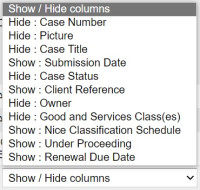
Show or hide columns in search results
You can show or hide columns in your search results by clicking the Show/Hide columns dropdown menu.
Saving your display preferences
You can save your display preferences if you are logged in. To save your display preferences click Save Display Settings.
You can save different display preferences for searching different IP case types. For example, you might have the date search section hidden on the trade marks search screen and visible on the patents search screen.
Searching for protected marks
The use of certain signs is restricted under a variety of laws and statues including the New Zealand Trade Marks Act 2002. These are often referred to as Protected Marks. The registration of these types of trade marks (and signs that are confusingly similar) is restricted.
Examples of protected marks include:
- Official emblems and hallmarks of states and intergovernmental organisations
- New Zealand flag and ensigns
- Flags or emblems of other countries
- Geographical names registered in respect of certain goods
- International non-proprietary pharmaceutical names
- Common name of any (chemical) element or compound
- Generic names for pesticides and agricultural chemicals
- Plant varieties
In order to search protected marks you must search the relevant databases:
| Official emblems and hallmarks of stats and intergovernmental organisations (article 6ter) | WIPO (article 6ter) |
| International non-proprietary pharmaceutical names | WHO - International non-proprietary names (INN) |
| Plant varieties | New Zealand PVR database UPOV - PLUTO database |
|
Common name of any (chemical) element or compound |
Practice guideline - 04 Absolute Grounds General
|
|
Generic names of pesticides and agricultural chemicals |
|
|
New Zealand Flag and ensigns |
|
|
Flags or emblems of other countries |
|
|
Flags or emblems of other countries |
|
|
Geographical names |
Vienna descriptor overview
Descriptor categories set by the World Intellectual Property Organization (WIPO)
For more details on WIPO Vienna descriptors, please see the WIPO website.
Vienna Classification — WIPO
- Category 1: Celestial Bodies, Natural Phenomena, Geographical Maps
- Category 2: Human Beings
- Category 3: Animals
- Category 4: Supernatural, Fabulous, Fantastic or Unidentifiable Beings
- Category 5: Plants
- Category 6: Landscapes
- Category 7: Constructions, Structures for Advertisements, Gates or Barriers
- Category 8: Foodstuffs
- Category 9: Textiles, Clothing, Sewing Accessories, Headwear, Footwear
- Category 10: Tobacco, Smokers' Requisites, Matches, Travel Goods, Fans, Toilet Articles
- Category 11: Household Utensils
- Category 12: Furniture, Sanitary Installations
- Category 13: Lighting, Wireless Valves, Heating, Cooking or Refrigerating Equipment, Washing Machines, Drying Equipment
- Category 14: Ironmongery, Tools, Ladders
- Category 15: Machinery, Motors, Engines
- Category 16: Telecommunications, Sound Recording or Reproduction, Computers, Photography, Cinematography, Optics
- Category 17: Horological Instruments, Jewellery, Weights and Measures
- Category 18: Transport, Equipment for Animals
- Category 19: Containers and Packing, Representations of Miscellaneous Products
- Category 20: Writing, Drawing or Painting Materials, Office Requisites, Stationery and Booksellers' Goods
- Category 21: Games, Toys, Sporting Articles, Roundabouts
- Category 22: Musical Instruments and their Accessories, Music Accessories, Bells, Pictures, Sculptures
- Category 23: Arms, Ammunition, Armour
- Category 24: Heraldry, Coins, Emblems, Symbols
- Category 25: Ornamental Motifs, Surfaces or Backgrounds with Ornaments
- Category 26: Geometrical Figures and Solids
- Category 27: Forms of Writing, Numerals
- Category 28: Inscriptions in Various Characters
- Category 29: Colours.
Additional descriptors set by IPONZ
Category 53: New Zealand-specific elements:
- 53.1 Maori
- 53.1.1 Moko (tattooing) (see also 2.1.1, 2.1.25, 2.3.1 and 2.3.25)
- 53.1.2 Kowhaiwhai (curvilinear design) (See also 25.7.1)
- 53.1.3 Tukutuku (rectilinear design) (See also 25.7.3 and 25.7.23)
- 53.1.4 Whakairo (carving) (See also 2.1.1, 2.1.22, 2.3.1 and 2.3.22)
- 53.1.5 Tiki/Hei Tiki (see also 4.5.5)
- 53.1.20 Other Maori.
- 53.2 Flora
- 53.2.1 Fern (does not include silver fern, see 53.2.2) (see also 5.1)
- 53.2.2 Silver Fern (see also 5.3.7, 5.3.13 and 5.3.14)
- 53.2.3 Flax (see also 5.1)
- 53.2.4 Kauri (see also 5.1)
- 53.2.5 Kowhai (see also 5.1 and 5.5)
- 53.2.6 Pohutukawa (see also 5.1 and 5.5)
- 53.2.7 Nikau (see also 5.1)
- 53.2.8 Ti Tree (Cabbage tree) (see also 5.1.30)
- 53.2.20 Other flora.
- 53.3 Fauna
- 53.3.1 Tuatara (see also 3.11.23)
- 53.3.2 Weta (see also 3.13.23)
- 53.3.10 Fantail/Piwakawaka (see also 3.11.23)
- 53.3.11 Huia (see also 3.7.21)
- 53.3.13 Moa (see also 3.7.21)
- 53.3.14 Tui (see also 3.7.21)
- 53.3.30 Other fauna (see also 3.7.21)
- See 3.7.18 for Kiwi.
- 53.4 Other New Zealand
- 53.4.1 NZ map (any combination of the islands) (see also 1.17.6)
- 53.4.2 NZ flag (see also 24.7.1)
- 53.4.3 Aoraki (Mt Cook) (see also 6.1.2 and 6.1.4)
- 53.4.4 Taranaki (Mt Egmont) (see also 6.1.2 and 6.1.4)
- 53.4.20 Other New Zealand items.